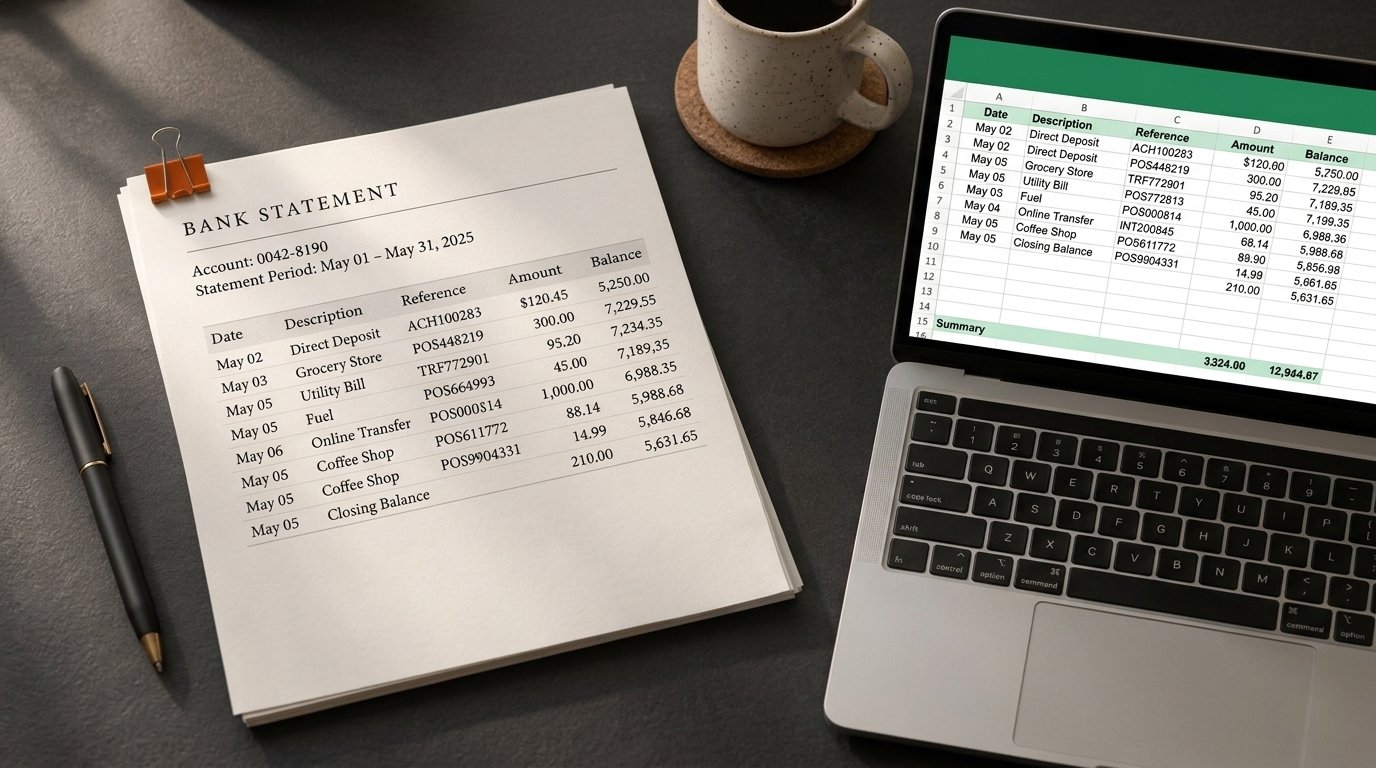
How to Extract a Bank Statement PDF to Google Sheets for Free
Turn a PDF bank statement into a CSV, import it into Google Sheets, and run four checks on dates, leading zeros, and totals. Tested on a two-page statement.
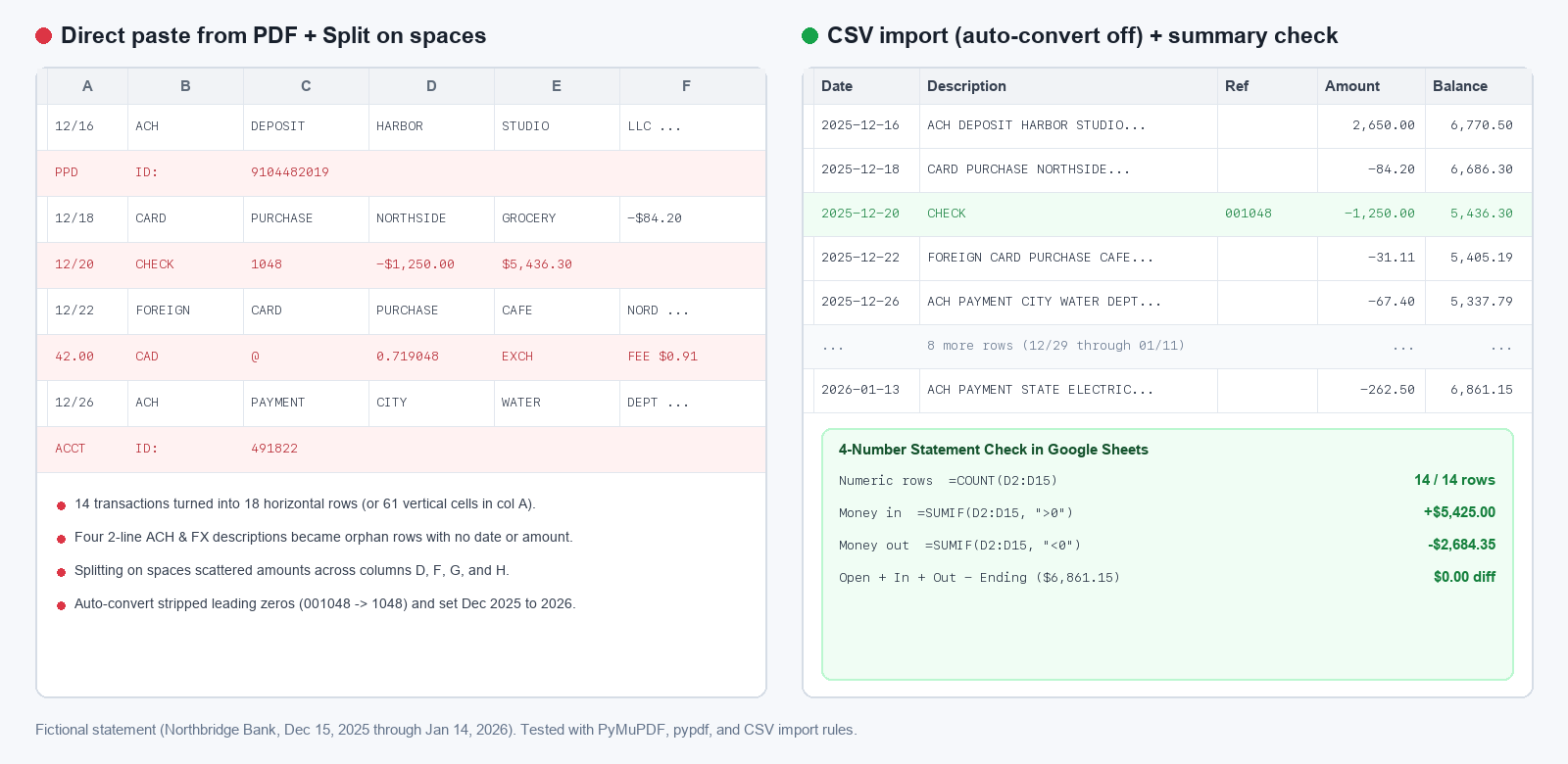
To extract a bank statement PDF to Google Sheets for free, convert the PDF to a CSV file first, import it through File > Import, and check the rows against your statement summary. Google Sheets cannot open PDFs on its own. We tried skipping conversion on a fictional two-page statement. Copying from the PDF split 14 transactions into either 61 cells down Column A or 18 uneven rows across eight columns. Even with a clean CSV, Google Sheets' default import checkbox moved every December 2025 row forward into December 2026.
Check if your bank already exports a CSV
Look in your bank's online transaction view before converting any PDF. Most banks let you download recent activity directly as a CSV file at no cost, and that file opens cleanly in Google Sheets.
You need PDF extraction in three situations:
- The bank cuts off CSV downloads after 90 days or 18 months, leaving older history available only as monthly statement PDFs.
- Someone sent you a PDF or paper scan for bookkeeping, tax prep, or a shared household budget.
- You need the statement period, opening and closing balances, or running balance column, which bank activity downloads often omit. Our guide to the Chase bank statement PDF shows how those two exports differ on a real bank portal.
The short workflow: PDF to CSV to Google Sheets
- Convert the PDF to CSV. Upload your PDF, PNG, or JPG statement to our bank statement converter. New visitors get 6 free one-time trial credits without signing up (1 credit per page), and creating a free account brings the initial trial total to 10 credits. Review the extracted rows and click Export CSV.
- Start an import in Google Sheets. Open a spreadsheet at
sheets.google.comand choose File > Import > Upload, following Google's spreadsheet import instructions. - Choose the import location and turn off auto-conversion when needed. Pick Replace current sheet for one statement, or Append rows to current sheet when adding another month to the bottom of an existing tab. Set Separator type to Comma. Uncheck Convert text to numbers, dates, and formulas if your statement prints dates without a year (
12/16) or check numbers with leading zeros (001048). - Clean up non-transaction blocks and check the math. Remove summary or daily-balance tables, convert raw dates and amounts with two short formulas, and check the row count and totals against page 1 of the PDF.
Why direct paste and free workarounds break on real statements
To test common free methods, we built a fictional two-page statement for Northbridge Bank (December 15, 2025 through January 14, 2026, account holder Alex Rivera). It starts with $4,120.50 and ends at $6,861.15 across 14 transactions (+$5,425.00 in deposits and -$2,684.35 in withdrawals). We included one check (001048), four two-line ACH and foreign-currency entries, and a four-row Daily Ending Balance table on page 2.
Copying and pasting from a PDF viewer
A PDF places text by page coordinates rather than spreadsheet rows and tabs. Depending on which PDF viewer you copy from, pasting into cell A1 in Google Sheets fails in one of two ways:
- One cell per line down Column A. Extracting text in stream order with
PyMuPDFandpypdfturned our 14 transactions into 61 vertical cells in a single column. Reshaping with=WRAPROWS(A1:A61, 4)does not work. Plain card purchases take four cells, while Check001048and two-line ACH or Canadian-dollar entries take five. The first five-cell row shifts everything below it into the wrong column. - Space-separated lines across the sheet. Copying in visual layout order gave 18 horizontal rows instead of 14. Four second lines (
PPD ID,ACCT ID, and the exchange rate line) became orphan rows with no date or amount. Running Data > Split text to columns on spaces then split merchant names by word count. Amounts landed anywhere from Column C to Column H depending on merchant length.
Opening the PDF with Google Docs in Google Drive
Many video tutorials suggest uploading the statement to Google Drive and choosing Open with > Google Docs. Google's own Drive OCR help page lists two limits that get left out of those demos:
- The file should be 2 MB or smaller. When we saved six pages of our test layout as a 300-DPI color scan, the PDF measured 5.73 MB, nearly triple Google's size recommendation.
- Tables and columns are not likely to be detected. Even on a 4 KB digital PDF, Google Docs opens the statement as word-processor text mixed with page headers and footers rather than a clean grid you can paste into Sheets.
General AI chatbots and Google Workspace add-ons
Free tiers of general chatbots can turn a short statement into a table you paste into Sheets, though doing so sends names, account numbers, addresses, and payment counterparties into a chat session. Language models also predict text token by token without checking balance arithmetic, so a dropped row on page 2 looks clean until you add the column up. If you upload a statement anywhere, read our guide on how to redact a bank statement first.
Google Workspace Marketplace add-ons run inside Google Sheets and skip the file upload step. Read the permission prompt before installing one. Many spreadsheet add-ons request broad access to view and edit files across your Google Drive, which company Workspace admins often block. Free tiers also stop after a few pages.
Five traps in Google Sheets after you import the CSV
Getting rows into columns is half the job. Spreadsheet settings can still change dates, IDs, and totals once the CSV lands in Google Sheets.
1. Yearless dates get stamped with the current year
Many US checking statements print 12/16 and 01/03 without a year. When Convert text to numbers, dates, and formulas stays checked during import, Google Sheets assumes every MM/DD string belongs to the current calendar year. Importing our December 2025 to January 2026 statement in 2026 turned 12/16 into December 16, 2026 on all eight December rows. Sorting by date then placed January before December.
Uncheck auto-conversion during import so 12/16 arrives as plain text in Column A, then add the real year in a helper column. For a statement within a single year (such as 2025):
=DATE(2025, LEFT(A2, 2), RIGHT(A2, 2))For a December-to-January statement spanning 2025 and 2026:
=DATE(IF(VALUE(LEFT(A2, 2))=12, 2025, 2026), LEFT(A2, 2), RIGHT(A2, 2))2. US and UK date locales flip days and months
Check File > Settings > Locale before converting dates. On a United States sheet, 15/09/2026 from a UK statement cannot be parsed as MM/DD/YYYY and stays left-aligned text, while 03/09/2026 quietly becomes March 9 instead of September 3. Half the column sorts as dates and half sorts alphabetically as text. Set the sheet locale to match the bank's country before importing.
3. =SUM() skips text amounts without warning
Currency symbols with spaces ($ 67.40), DR or CR suffixes, or trailing minus signs (67.40-) can leave a cell stored as text while the rest of the column converts to numbers. In Google Sheets, =D2+D3 flags text with #VALUE!, whereas =SUM(D2:D15) treats text cells as zero and shows no error at all.
On our test statement, leaving one -$67.40 utility payment as text made =SUM() return $2,808.05 instead of $2,740.65, off by $67.40 with a clean-looking total. When you import with auto-conversion off, turn formatted dollar strings in D2 into real numbers with:
=VALUE(SUBSTITUTE(SUBSTITUTE(D2, "$", ""), ",", ""))Once the dates and amounts look right, select the helper columns, copy them, and use Edit > Paste special > Values only so you can delete the raw text columns cleanly.
4. Leading zeros vanish on check and reference numbers
Leaving auto-conversion on turns check 001048 into 1048 and converts 16-digit reference IDs into rounded scientific notation (1.23457E+15). Importing the CSV with auto-conversion unchecked keeps 001048 as text. You can also click Export Excel in Bank File Tool and import the .xlsx file instead. Our Excel export formats every column as @ (plain text) ahead of time, so leading zeros stay intact with default settings.
5. Summary tables and repeated headers inflate totals
Bank File Tool writes every table from the PDF into one CSV in printed order, separated by a blank row, so nothing is dropped behind your back. In our test CSV, the Account Summary at the top and the Daily Ending Balance table at the bottom added eight currency cells totaling $42,448.89. Delete non-transaction blocks (or move them to a second tab) before summing a column.
Watch for one extra row when combining months, too. Choosing Append rows to current sheet pastes the entire second CSV below your existing data, including its row-1 column headers (Date, Description, Ref, Amount, Balance). Delete that duplicate header row right after each append.
Four checks before you filter, sum, or share
Before building pivot tables or sharing the link with an accountant, verify the imported transaction range (D2:D15 in our 14-row test sheet) against the four numbers printed in your statement's summary box:
| Check | Test statement | Google Sheets formula | What a mismatch points to |
|---|---|---|---|
| Numeric row count | 14 transactions | =COUNT(D2:D15) vs =COUNTA(D2:D15) | If COUNT is lower than COUNTA, at least one amount cell is still stored as text and skipped by =SUM() |
| Money in | $5,425.00 | =SUMIF(D2:D15, ">0") | A missed deposit, a duplicate import, or a summary row left inside the range |
| Money out | -$2,684.35 | =SUMIF(D2:D15, "<0") | A skipped page, a wrapped two-line row, or signs inverted on a credit card statement (sum the Debit column separately if inflows and outflows sit in two columns) |
| Ending balance | $6,861.15 | =ROUND(4120.50 + SUM(D2:D15) - 6861.15, 2) | Anything other than 0 means a transaction is missing or an OCR digit on a scanned page needs fixing |
Bank File Tool checks this arithmetic during extraction whenever opening and closing balances appear on the statement. If the rows do not reconcile, the file is marked for review. Running the four formulas again in Google Sheets confirms nothing shifted during import or cleanup. To compare those verified bank rows with your own ledger, paste them into our free bank reconciliation statement format in Excel, which opens in Google Sheets too.
Before clicking Share in Google Sheets, check two settings:
- Remove unneeded personal identifiers. ACH lines often carry
IND IDnumbers and Zelle descriptions often include another person's phone number or email. Clear any header or reference details your collaborator does not need. - Share as Viewer or Commenter. Giving
Editoraccess lets someone sort a single column instead of the whole table, detaching descriptions from their amounts. If collaborators need their own filters, tell them to use Data > Filter views rather than sorting the sheet directly.
FAQ
Can Google Sheets open a PDF bank statement directly?
No. Google Sheets imports spreadsheet and delimited text files (.csv, .tsv, .txt, .xlsx, .xls, and .ods), not PDFs. Convert the PDF to CSV or .xlsx first, then bring it in through File > Import.
Should I export CSV or Excel (.xlsx) from Bank File Tool for Google Sheets?
Google Sheets accepts both. Pick CSV when using Append rows to current sheet to stack monthly statements into one tab. Remember to uncheck auto-conversion if your file has yearless dates or leading zeros. Pick Excel (.xlsx) when you want every cell pre-formatted as text, or when descriptions begin with =, +, or - that CSV import might read as a formula.
How many pages can I extract for free? New visitors on Bank File Tool receive 6 one-time trial credits without creating an account, and signing up brings the initial free allowance to 10 credits in total. Each PDF page or image file uses 1 credit.
Is it safe to upload a bank statement to an online converter? Check how any converter processes and retains files before uploading financial data. As noted in our Privacy Policy, Bank File Tool uploads files to server infrastructure for parsing rather than processing them solely inside your browser. Only upload statements you are authorized to share, and redact details you do not need beforehand.
Tested on November 24, 2026 with a fictional two-page statement (Northbridge Bank, Alex Rivera). Every name, account number, merchant, and figure in this article is invented. Google Sheets and Google Drive behavior was checked against Google's official Help Center documentation. Bank File Tool is not affiliated with Google LLC.
Author

=SUM() skips text amounts without warning4. Leading zeros vanish on check and reference numbers5. Summary tables and repeated headers inflate totalsFour checks before you filter, sum, or shareFAQMore Posts
How to Redact a Bank Statement: What to Hide and How to Check It
Which fields to hide for a landlord, lender, court or converter, why a black box over a PDF hides nothing, and five checks to run on the saved copy. Based on a test with a fictional statement.
Chase Bank Statement PDF: Where to Find It, How to Read It, and How to Get It Into Excel
Where to download a Chase statement PDF on chase.com or in the app, what each part of the statement means, why the file is locked, and how to check the numbers once they are in Excel.
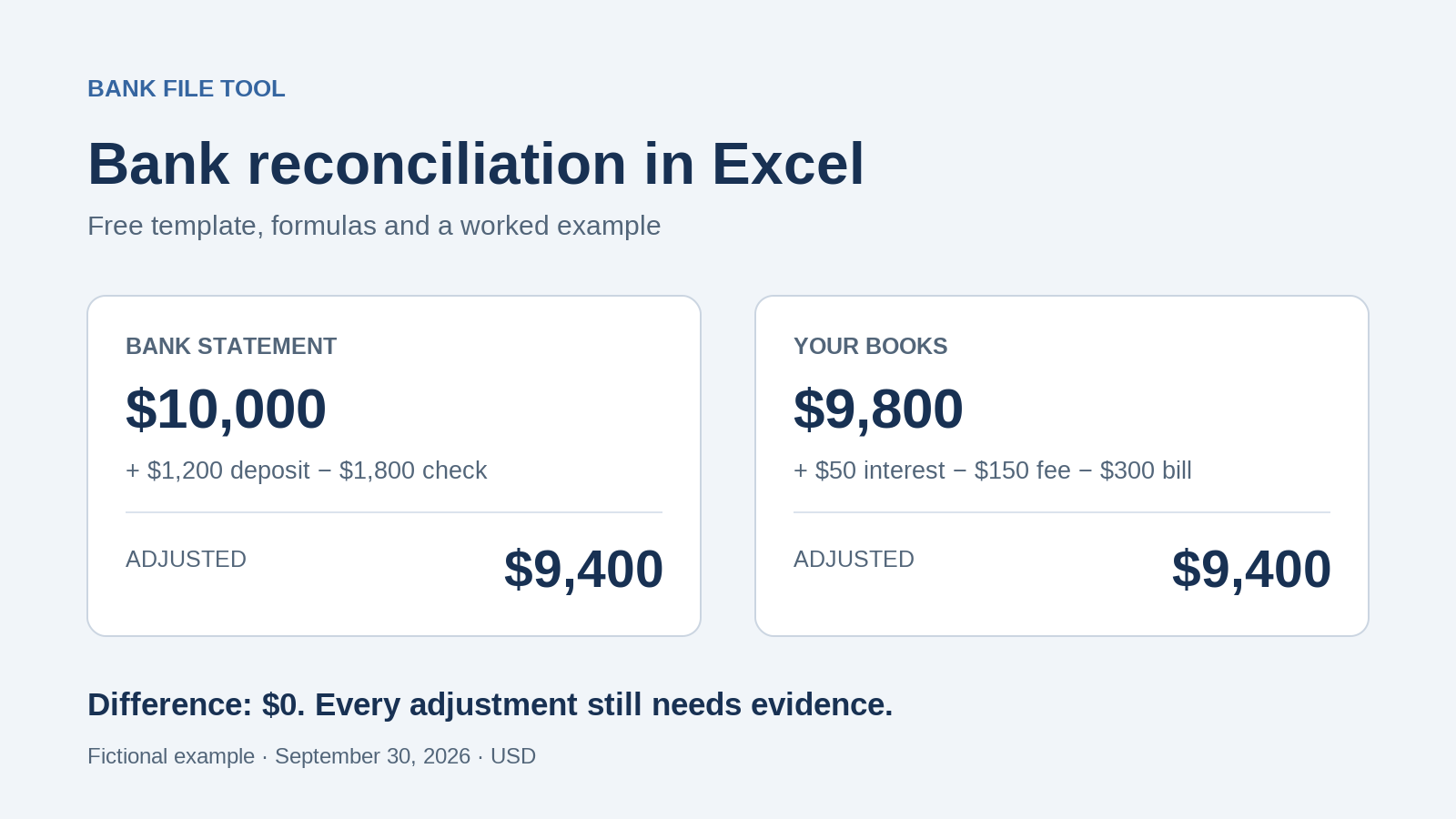
Bank Reconciliation Statement Format in Excel: Free Template
Download a bank reconciliation statement format in Excel with formulas and a worked example. Convert PDF statements, compare transactions, and explain differences.